Preetish HS
Follow
Freelance web developer, digital nomad, and design enthusiast. You can find me online at
preetish.in
.
How to use Vue 3 with TypeScript
August 17, 2022
7 min read
Editor’s note
: This article was last updated on 17 August 2022 to include new features introduced in Vue 3, including
defineComponent
.
Vue is an amazing lightweight, progressive frontend framework. In this tutorial, we’ll demonstrate how to build a Vue app completely in TypeScript. We’ll highlight some of the benefits of using TypeScript with Vue by building an example app with class-based components, Vuex for state management, lifecycle hooks, and more. Let’s get started!
Vue is flexible, so users are not forced to use TypeScript. Unlike Angular, older versions of Vue did not have proper support for TypeScript. For this reason, most Vue applications have historically been written in JavaScript.
Vue 3
, released in September 2020, includes features like a built-in composition API, multiple root elements, and, crucially, improved TypeScript support. For detailed information on how to migrate your existing Vue projects to Vue 3, I recommend checking out
Refactoring your Vue 2 apps to Vue 3
.
Now that Vue officially supports TypeScript, it’s easy to create TypeScript projects from scratch using only the Vue CLI without any third-party libraries. However, neither the official Vue docs nor the TypeScript docs include all the information you need to get started. To paint a fuller picture, we’ll demonstrate how to build a new Vue and TypeScript application using the
Vue CLI
.
How to add TypeScript to a Vue project
First, we’ll set up a new Vue project with TypeScript using the code below:
npx @vue/cli create typescript-app
Choose manually select features and configure it with the following settings:
Once the project is set up, run the project to test it:
cd typescript-app
npm run serve
Open localhost:8080 or whatever URL your console shows after starting the project, and you should see your app running successfully. For each item below, I’ll show both the TypeScript and JavaScript-equivalent code so you can easily compare the two. Let’s get started!
Using defineComponent
defineComponent provides decorators from the Vue library, which we can use to define Vue components with full TypeScript support. To use defineComponent, open App.vue from the src folder and add the following code:
To use TypeScript, we first need to set the lang attribute in the <script> tag to ts:
<script lang="ts">
defineComponent has a decorator that allows us to define the components and attributes of each component. The components object helps us to add our components into the template:
components: {
HelloWorld,
Using data
To use data properties, we can simply declare them as class variables:
To use props in our Vue component, we can use the props decorator. In Vue, we can give additional details for props, like required, default, and type. However, since we’re using defineComponent, we don’t need to import the Prop decorator. Instead, we can write props in defineComponent, as shown below. We could also use readonly to avoid manipulating the props:
We can use a computed property to write simple template logic, like manipulating, appending, or concatenating data. In TypeScript, a normal computed property is also prefixed with the get keyword:
We can write complex computed properties, which have both getter and setter. By default, computed properties are getter-only. The getter and setter must be used in the computed property for TypeScript as follows:
export default defineComponent({
components:{
HelloWorld
title:"welcome to my app",
data(){
return{
title:"welcome to my app",
first:'Popoola',
last:"Temitope"
computed:{
fullname:{
// getter
get() : string {
return this.first+" "+ this.last
// setter
set(value : string) {
let names = value.split(' ');
this.first = names[0];
this.last = names[names.length - 1]
The JavaScript-equivalent code is shown below:
fullName: {
get: function () {
return this.first + ' ' + this.last
set: function (newValue) {
let names = newValue.split(' ')
this.first = names[0]
this.last = names[names.length - 1]
Methods
Methods in TypeScript, like normal class methods, have an optional access modifier:
export default defineComponent({
components:{
HelloWorld
data(){
return{
title:"welcome to my app",
methods:{
clickMe() {
console.log('clicked')
console.log(this.addNum(4, 2))
addNum(num1: number, num2: number): number {
return num1 + num2
In TypeScript, Watchers are written differently than how we’d usually write them in JavaScript. The most commonly used syntax for a watcher in JavaScript is below:
In the first example, the function called addToCount is converted to kebab case, which is very similar to how emit works in Vue.
In the second example, we pass the explicit name resetData for the method, and we then use that name instead. Since addData is in camel case, we convert it to kebab case instead:
Inside the @components decorator, we store the code to register components inside the other components. Let’s demonstrate this by creating a counter app. Add the following code to App.vue:
<template>
<div class="app">
<h1>{{title}}</h1>
<Counter/>
</template>
//Typescript code
<script lang="ts">
import { defineComponent } from 'vue';
import Counter from './components/Counter.vue';
export default defineComponent({
components:{
Counter
data(){
return{
title:"welcome to my counter app",
</script>
To use a counter component, create Counter.vue inside the components folder and add the following code to it:
Vuex is the official state management library used in most Vue applications. In Vuex, it’s good practice to split the store into modules, so we’ll demonstrate how to write that in TypeScript. To store the state, let’s create a file called types.ts in the store folder:
In the store folder, we need to create an index.ts file to initialize Vuex and register the module:
// store/index.ts
import Vue from 'vue';
import Vuex, { StoreOptions } from 'vuex';
import { RootState } from './types';
const store:StoreOptions<RootState> = {
state:{
stateTitle:"Vue.js and TypeScript: A Complete Tutorial With Examples",
modules:{
export default new Vuex.Store<RootState>(store)
In the code above, we utilize StoreOptions from the Vuex library to handle the State, Getter, Mutation, and Action. We can access and update the value for stateTitle using Getter and Setter in the App.vue file as follows:
// src/App.vue
<template>
<div id="app">
<h1>{{stateTitle}}</h1>
<br><br>
<Counter />
</template>
<script lang="ts">
import Counter from './components/Counter.vue';
import store from './store';
import { defineComponent} from 'vue';
export default defineComponent({
title:"Counter App",
components: {
Counter,
computed:{
stateTitle:{
get():string{
return store.state.stateTitle;
set(value:string){
store.state.stateTitle = value
console.log(store.state.stateTitle)
</script>
Lifecycle hooks
A Vue component has eight lifecycle hooks, including created and mounted. We use the same TypeScript syntax for each hook, and we declare these as normal class methods. Since lifecycle hooks are called automatically, they neither take an argument nor return any data. Therefore, we don’t need access modifiers, typing arguments, or return types:
To create mixins in TypeScript, we must first create our mixin file, which contains the data we share with other components.
Inside the mixins directory, create a file called ProjectMixin.ts and add the following mixin, which shares the project name and a method to update the project name:
// src/mixins/ProjectMixin.ts
import { defineComponent } from 'vue';
export default defineComponent({
data(){
return{
projName:"Vue.js and TypeScript: A complete tutorial with examples",
projName:'My project',
projectDetail1: {
set value(v : string) {
this.projName = v;
get value() : string {
return this.projName
In JavaScript, we’d write the code above as follows:
To use the TypeScript mixin above in our Vue component, we need to import the Mixins from Vue Property Decorator as well as our mixin file itself, then write it as follows:
In this article, we’ve covered all the basic information you need to create a Vue application completely in TypeScript with custom decorator features and no third-party libraries. Now, you should be able to get your Vue app up and running in TypeScript with features like defineComponent, data, props, computed properties, methods, and watchers.
Vue 3.0 includes better support for TypeScript out of the box, and the entire Vue code was rewritten in TypeScript to improve maintainability. I hope you enjoyed this tutorial, and be sure to leave a comment if you have any questions. Happy coding!
Experience your Vue apps exactly how a user does
Debugging Vue.js applications can be difficult, especially when there are dozens, if not hundreds of mutations during a user session. If you’re interested in monitoring and tracking Vue mutations for all of your users in production, try LogRocket. https://logrocket.com/signup/
LogRocket is like a DVR for web and mobile apps, recording literally everything that happens in your Vue apps including network requests, JavaScript errors, performance problems, and much more. Instead of guessing why problems happen, you can aggregate and report on what state your application was in when an issue occurred.
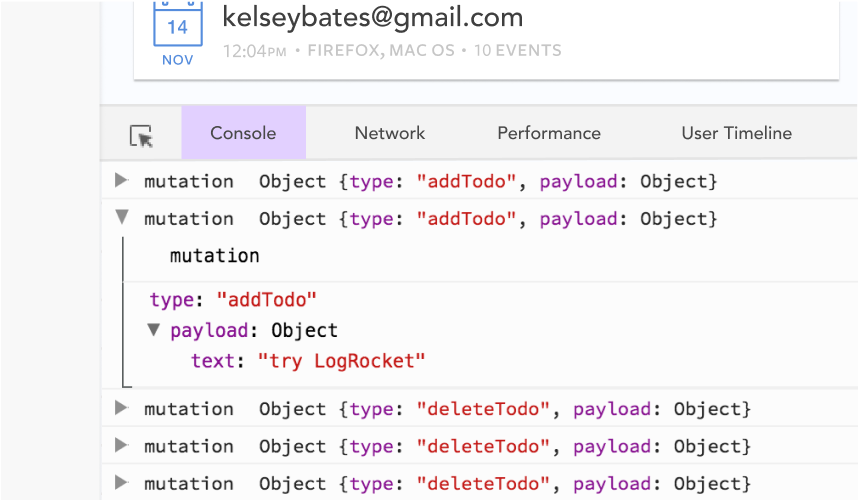
The LogRocket Vuex plugin logs Vuex mutations to the LogRocket console, giving you context around what led to an error, and what state the application was in when an issue occurred.
LogRocket: Full visibility into your web and mobile apps
LogRocket is a frontend application monitoring solution that lets you replay problems as if they happened in your own browser. Instead of guessing why errors happen, or asking users for screenshots and log dumps, LogRocket lets you replay the session to quickly understand what went wrong. It works perfectly with any app, regardless of framework, and has plugins to log additional context from Redux, Vuex, and @ngrx/store.
In addition to logging Redux actions and state, LogRocket records console logs, JavaScript errors, stacktraces, network requests/responses with headers + bodies, browser metadata, and custom logs. It also instruments the DOM to record the HTML and CSS on the page, recreating pixel-perfect videos of even the most complex single-page and mobile apps.
Nice! Filling in the typescript gaps between vuex and vue components is very important. Is there a way of gracefully getting this to work with action and getters in the root store as well?
const store = new Vuex.Store({
actions: {}, // Can’t make use of decorators
getters: {}, // Can’t make use of decorators
modules: {
If you are using actions and getters in your root store, you will be able to access it directly like this
Thank you for this article! I am new, and with this topic I find the offical docu not so good as its reputation would make me expect.
However, I do get lost, when you import “Project” and later set it as a component as “project” (lowercase). That doesn’t work in my case. Shouldn’t the component be written in uppercase, too?
And I get a ton off errors when defining the @Props:
ERROR in /Volumes/_II_/_SITES/vue_chord_player/src/components/Keyboard.vue(15,43):
15:43 Property ‘name’ has no initializer and is not definitely assigned in the constructor.
13 | export default class Keyboard extends Vue {
14 | @Prop() readonly msg!: string
> 15 | @Prop({ default: ‘John Doe’ }) readonly name: string
This is weird, because I do follow your setup completely… what is wrong here?
Hi Robert,
Thanks for pointing it out, you are right, it should have been uppercase “Project”.
And coming to props. It should actually work, Here is a working github repo which I created for Nuxt + Typescript. It Has similar @Prop declarations. You can check it out here. It should be there same for Vue as well.
Hi, I applaud anybody who is spreading information about how to get typescript and vue working. Until Vue 3.0 comes out, it is not an easy thing to do. I have been working on my learning of it for the past 2 -3 months. My top two requirements were to use typescript (preferably classes) and unit testing.
I early on came to the conclusion that the proper solution at this point in time is to use the composition API and not the options API or the class API for Vue components. The composition API is the way forward for typescript in Vue and we can start using it today with the composition api plugin. And it makes your code very easy to separate the logic from the presentation so both can easily be unit tested. I have been defining all my logic of a vue in a class that gets instantiated in the vue component’s setup function and the class’ variables are defined as Refs for reactivity. It works great and unit testing it is so easy. it also allows you to separate different parts of the component’s logic into different classes so those items can be unit tested independently.
For global state, I tried vuex-module-decorators and gave up. They seem to work at first, but once you start trying to do error handling of actions, both in production code and unit tests, you start to get strange errors from the decorator code. There is an SO thread an issue on github about it. This issue was the thing that finally made me abandon vuex. It just isn’t architected well to work with a typed language like typescript and I don’t want to give up the type safety and tooling support of typescript by casting everything everywhere. So now that I don’t use vuex, I have started to create typescript classes that are singletons as my global state and I import these modules wherever I need them. It works perfectly and I get typesafety because they are just classes. And they are incredibly easy to unit test. I don’t have to do anything special.
Now that i have done all that, Vue and typescript work really well together.
My biggest recommendation would be to ditch vuex. I would say that 80% of my time learning vue was trying all the different approaches to typescript and vuex. It all felt like banging my head against the wall
Hi Benedict. Thanks. This article will always be live.
I forgot to add an example app link in the article. If you want to take a look at the code of a simple Vue.js app written fully in typescript. Please take a look at this.
Well, The newer version of Vuex will also come with typescript support, It would be much easier then!
I’m hitting issues now with this, when I use an action I’m getting:
ERR_ACTION_ACCESS_UNDEFINED: Are you trying to access this.someMutation() or this.someGetter inside an @Action?
That works only in dynamic modules.
If not dynamic use this.context.commit(“mutationName”, payload) and this.context.getters[“getterName”]
In even the simplest examples like the above that are definitely using this.context.commit, anyone got any ideas?
NOTE: Be careful, getters in vuex are not reactive. Loaded just once when the component is created.
To access a data reactively, use this syntax
syntax: this.$store.state.{CLASSNAME}.{MEMBER_OF_CLASS}
example: this.$store.state.User.name
to put in the component which you want access at the data.
I use class components with decorators. Except for vuex and vuex modules I do not use decorators. Do not need them and all works fine, no errors.
I understood that when application grows also vuex is needed in Vue 3, So I stay at Vue 2 with typescript for now.