Local testing environments
are highly useful tools for WordPress developers and site owners. While we’re partial to
DevKinsta
, our own free local development tool, MAMP is also an excellent way to set up a WordPress instance. However, it can be hard to do much testing when you can’t access your site, and that’s exactly what a MAMP HTTP Error 500 will result in.
This error is particularly troublesome because it rarely provides any useful information or hints as to the source of the problem. Fortunately, you can usually trace the cause to PHP errors, a corrupt
.htaccess
file, or
problematic WordPress plugins
, all of which are relatively easy to fix.
In this article, we’ll explore the causes of this error and walk through three simple troubleshooting steps to get your MAMP installation back on track. Let’s dive in!
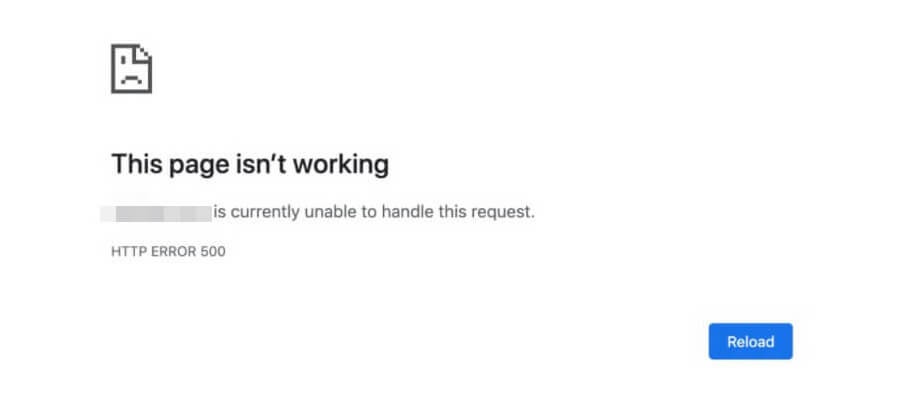
This is a generic, “catch-all” error. Essentially, the server wasn’t able to load the page for one reason or another, but it also couldn’t determine a more specific error code to use:
An HTTP 500 error in Google Chrome.
The error’s presentation can vary based on the specific browser being used, and some websites have custom error pages of their own. So what you’re seeing may not look exactly like the image above, but the basics are the same.
This is a frustrating error, primarily because it’s so vague. If it happens on a MAMP installation it can be even trickier since there are more potential causes.
With WordPress in general, the most common causes of an HTTP 500 error are plugin incompatibilities and a corrupt or missing
.htaccess
file
. This file handles server configuration, so issues there can cause a variety of problems.
Another possible source specific to
errors on MAMP
comes into play when your site encounters a PHP fatal error. This is often the result of misconfigured files or incorrect code. In these cases, checking the PHP error logs for your installation will often reveal the file that’s causing the issue, as well as the specific problem with the code.
Looking for a powerful tool for local WordPress development? DevKinsta features one-click site creation, built-in HTTPS, powerful email and database management tools, and more.
Learn more about DevKinsta
!
How to Fix the HTTP Error 500 in MAMP
In this section, we’ll walk through troubleshooting each of the potential causes of an Error 500 on a MAMP WordPress installation. You should follow these steps in order, and only proceed to the next fix if the problem persists.
Step 1: Check the PHP Error Log and Resolve Code Problems
The first troubleshooting step you should take is to check your MAMP installation’s PHP error log for problems. This log is a text file with a chronological listing of all PHP errors the installation has encountered and, if they’re
PHP code
issues, which file they occurred in.
You can find this file in your MAMP logs folder. On Windows, the path is
C:MAMP\logs
. On a Mac, it’s
/Applications/MAMP/logs
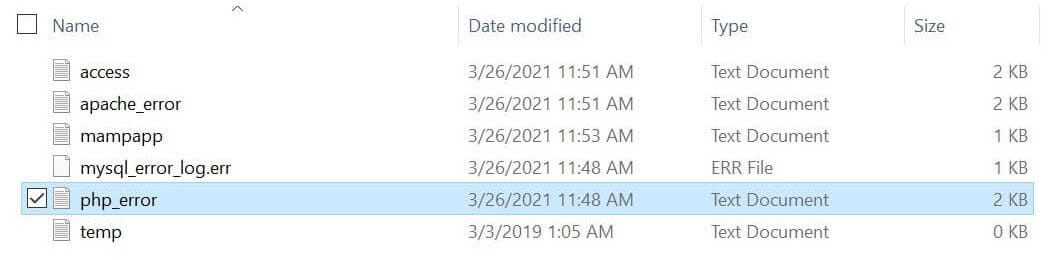
. Once you’re there, look for the file called
php-error
:
PHP error log in MAMP.
Open the file and look for any lines that indicate problems. They will begin with “PHP Parse error”. They will also usually tell you exactly what the problem is and which file it’s located in.
The issues you see here may vary. In
this example from Stack Overflow
, the user had semicolons at the end of some lines in the listed file. These should have been commas instead, and correcting this resolved the error.
If the error log is empty, or if correcting the errors in it doesn’t resolve the “Error 500,” proceed to the next step.