添加链接
link管理
链接快照平台
  • 输入网页链接,自动生成快照
  • 标签化管理网页链接

I recently erased my 2017 Macbook air, and upon rebooting it in internet recovery, need to reinstall 'macOS Sierra'. I have tried to install it on the Hard drive, but after a long wait of doing so, it says there is not enough storage space and can't install.

In 'Internal', both HDs and 'update' (all under AppleAPFSMedia) are empty, but 'APPLE SSD SM0256G Media' is full and I assume I need to erase the data..., which I don't know how to! (e.g. Name, Format, Scheme...) Any help would be greatly appreciated!

Show more

Use Disk Utility to erase your Mac

  1. Start up from macOS Recovery: Turn on your Mac, then immediately press and hold these two keys until you see an Apple logo or other image: Command (⌘) and R.
  2. If asked, select a user you know the password for, then enter their administrator password.
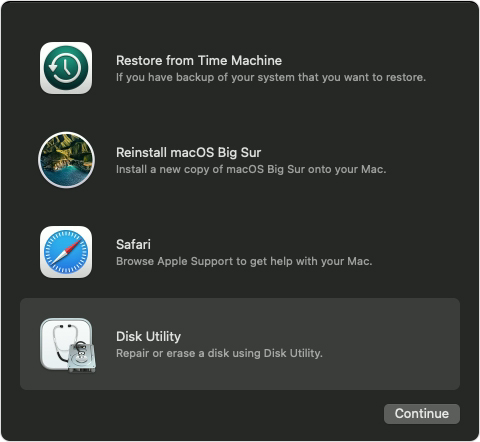
  3. From the utilities window, select Disk Utility and click Continue.

  4. Select Macintosh HD in the sidebar of Disk Utility. Don't see Macintosh HD?
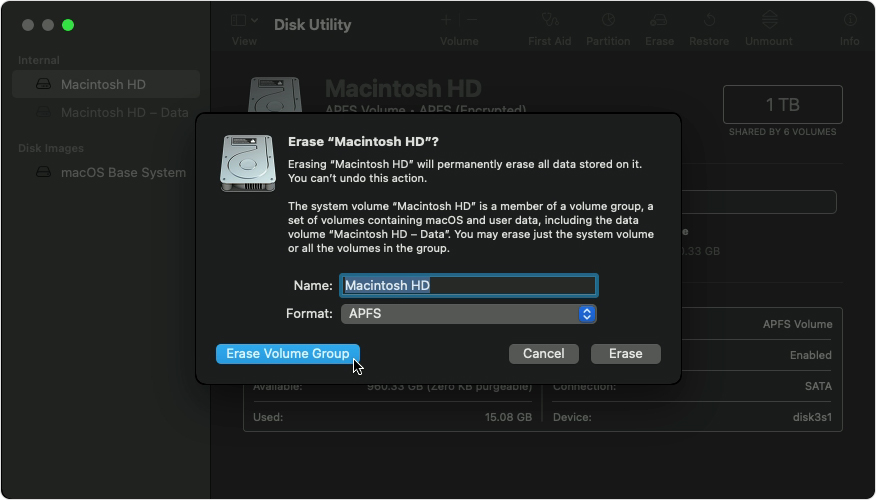
  5. Click the Erase button in the toolbar, then enter the requested details:
    • Name: Macintosh HD
    • Format: APFS or Mac OS Extended (Journaled), as recommended by Disk Utility
  1. Click Erase Volume Group. If you don't see this button, click Erase instead.

  2. If asked, enter your Apple ID. Forgot your Apple ID?
  3. After the erase is done, select any other internal volumes in the sidebar, then click the delete volume (–) button in the toolbar to delete that volume.
  4. During this step, disregard any internal volume named Macintosh HD or Macintosh HD - Data, as well as any volumes in the External and Disk Images sections of the sidebar.
  5. Quit Disk Utility to return to the utilities window.
  6. If you want to start up again from the disk you erased, select Reinstall macOS in the utilities window, then click Continue and follow the onscreen instructions to reinstall macOS .


Show more I Can't Reinstall MacOS or Access Internal Disk, APPLE SSD AP0512R Media I recently erased my 2021 Macbook pro and after rebooting it into internet recovery, so I could reinstall the macOS. It's showing there is no disk or destination to install it to. I went into the Into disk utility under 'internal', I only have 'APPLE SSD AP0512R Media'. I can't partition it and first aid says there is no issue with the disk. Below are a few screenshots of the issue. Any help would be greatly appreciated!. Installation taking forever! I've bought a used macbook pro 2017 and wanted to fresh instal the OS. Unfortunately i'm new to macbooks, i've always been a windows fan. So this is my current situation : I've formated the SSD disk and tried to install Sierra using the USB drive, but the installation took forever and looked like frozen, so i stopped it but when ever i want to re-install the latest OS using the internet and from Disk Utility it gives me Sierra. And i've noticed new elements on the SSD such as AppleAPFSMedia ( Preboot - Recovery - VM ), APPLE SSD SM05 ... I don't know if that USB drive kept some temporary files on the SSD and that's why i receive always sierra instalation or what. I have no idea what to do to finish the instalation Can’t find internal ssd in MacBook Pro and can’t install high Sierra I have an old MacBook and the system does not exist do no single user mode or safe boot, and the internal add does not pop up in disk utility or in the terminal when I use diskutil list, so I can’t reinstall macOS Sierra because there is only disk images. The erase, restore, and unmount buttons are all grayd out so all I have is the first aid and the partition button. When I try to reinstall high Sierra it can’t find a disk to install on and I don’t have an external disk to do.

Use Disk Utility to erase your Mac

  1. Start up from macOS Recovery: Turn on your Mac, then immediately press and hold these two keys until you see an Apple logo or other image: Command (⌘) and R.
  2. If asked, select a user you know the password for, then enter their administrator password.
  3. From the utilities window, select Disk Utility and click Continue.

  4. Select Macintosh HD in the sidebar of Disk Utility. Don't see Macintosh HD?
  5. Click the Erase button in the toolbar, then enter the requested details:
    • Name: Macintosh HD
    • Format: APFS or Mac OS Extended (Journaled), as recommended by Disk Utility
  1. Click Erase Volume Group. If you don't see this button, click Erase instead.

  2. If asked, enter your Apple ID. Forgot your Apple ID?
  3. After the erase is done, select any other internal volumes in the sidebar, then click the delete volume (–) button in the toolbar to delete that volume.
  4. During this step, disregard any internal volume named Macintosh HD or Macintosh HD - Data, as well as any volumes in the External and Disk Images sections of the sidebar.
  5. Quit Disk Utility to return to the utilities window.
  6. If you want to start up again from the disk you erased, select Reinstall macOS in the utilities window, then click Continue and follow the onscreen instructions to reinstall macOS .


Show more

Thank you so much for your detailed explanation!

After a few attempts, e.g. my HD desapeared, but just re-do the above process again and then it has worked!


I actually chat with the apple support team as well, and they are also very helpful.


Best wishes to anyone who has the same problem. Don't give up!

Show more
A forum where Apple customers help each other with their products. Get started with your Apple ID.
Learn more Sign up This site contains user submitted content, comments and opinions and is for informational purposes only. Apple may provide or recommend responses as a possible solution based on the information provided; every potential issue may involve several factors not detailed in the conversations captured in an electronic forum and Apple can therefore provide no guarantee as to the efficacy of any proposed solutions on the community forums. Apple disclaims any and all liability for the acts, omissions and conduct of any third parties in connection with or related to your use of the site. All postings and use of the content on this site are subject to the Apple Support Community Terms of Use . See how your data is managed...